Why Your AWS Bill Is Out of Control (And How to Fix It Without a Full-Time DevOps Engineer)
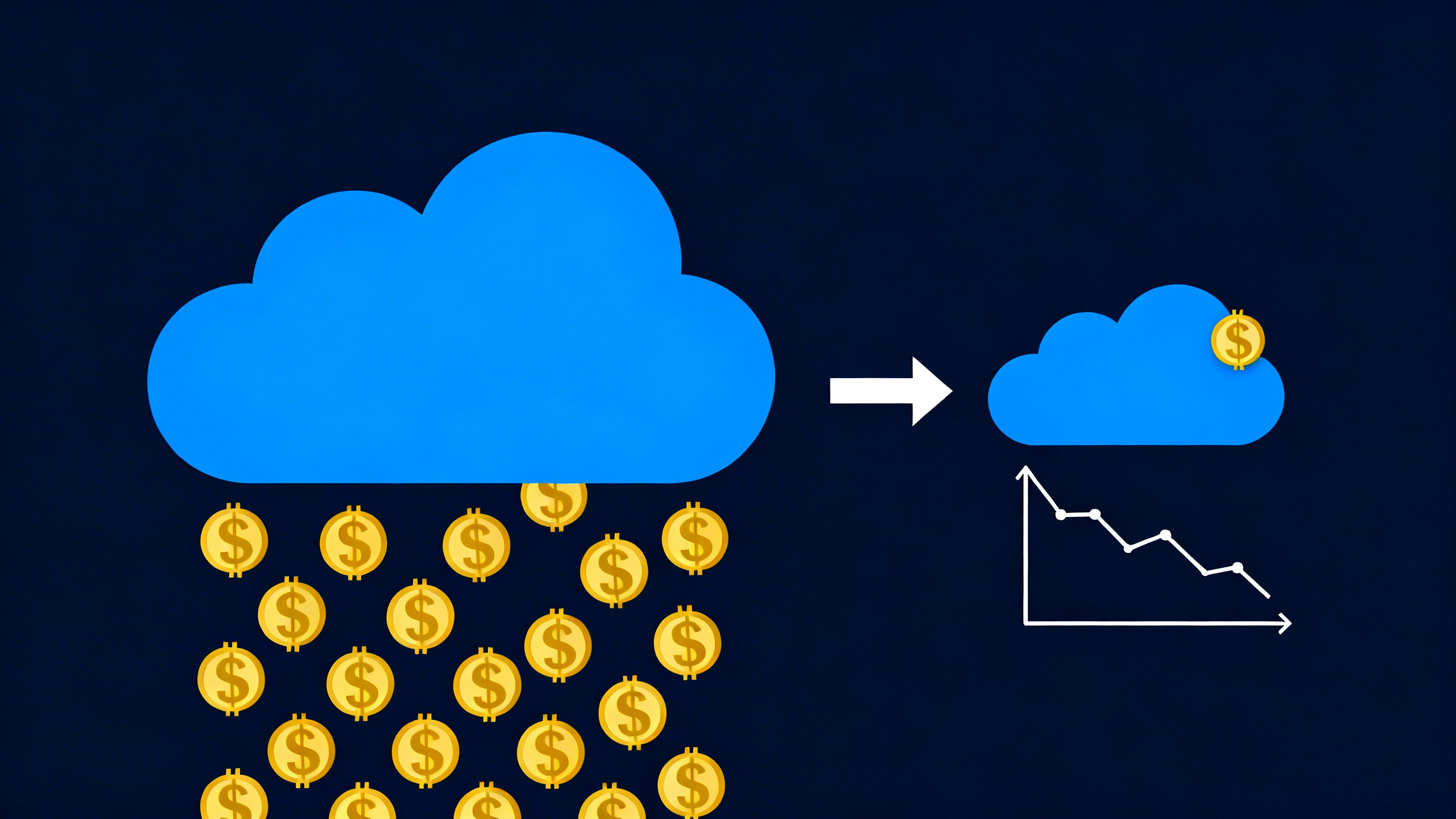
Your developer is technically “handling the cloud stuff.” They know enough to keep things running, and they’ve got more important things to do than audit billing. So the AWS bill sits on autopilot, until the day it shows up $400 higher than last month and nobody knows why.
This is how small business cloud costs spiral. Not because AWS is expensive. Because nobody’s watching.
Most of the waste is findable in a few hours if you know where to look. This article covers the five AWS line items that quietly drain small teams, how to set up a basic safety net in five minutes, and a realistic 30-day plan to cut your bill by 20-30%, without hiring a DevOps engineer.
Is Your AWS Bill Actually Bad? A Quick Reality Check
Before optimizing anything, it helps to know if your bill is actually high for your workload, or if you’re paying roughly what you should be.
Here are rough benchmarks for small SaaS teams:
- $100-400/month: Simple monolith or static app. A few EC2 instances, RDS, S3. This is normal for teams in early growth.
- $500-1,500/month: Growing product with multiple environments. Background workers, load balancers, more storage. Also normal, but this is where waste starts sneaking in.
- $2,000-5,000/month: Complex application or heavy data processing. At this scale, right-sizing and architecture decisions matter a lot.
- $5,000+/month: Significant infrastructure. If you don’t have someone watching this actively, you’re almost certainly overpaying.
The honest assessment: the Flexera 2025 State of the Cloud report found that organizations without a formal cost management practice waste 35-40% of their cloud spend. Most small businesses don’t have a formal practice. They have a developer who checks the bill when it looks weird.
If that sounds familiar, you’re probably overpaying. The question is where.
The 5 AWS Line Items That Eat Small Businesses Alive
These are the specific line items that show up in small business AWS bills over and over. They’re not obvious, they’re not AWS’s fault, and they’re fixable. Open your Cost Explorer (Billing → Cost Explorer) and look for these while you read.
| Line Item | Typical Monthly Cost | Where to Find It |
|---|---|---|
| NAT Gateway (3 AZs) | $99+ before traffic | Cost Explorer → VPC |
| Orphaned EBS volumes | $10-50+ per volume | EC2 → Volumes → “available” |
| CloudWatch Logs (no retention) | $30-100+ | CloudWatch → Log groups |
| Data transfer / egress | Variable, often $50-300 | Cost Explorer → EC2-Other |
| Oversized EC2 instances | $100-500+ per instance | Compute Optimizer |
NAT Gateway: The $100+/Month Tax You Didn’t Know You Paid
A NAT Gateway lets resources in private subnets reach the internet without being publicly exposed. It’s a legitimate piece of infrastructure, and it’s almost always deployed wrong for small teams.
If you follow the AWS high-availability pattern, you end up with one NAT Gateway per availability zone. Three AZs means three NAT Gateways. At $0.045/hour each, that’s ~$99/month in hourly charges before a single byte of traffic moves through them. Add $0.045/GB of data processing on top.
Most small teams don’t need NAT Gateways in every AZ. One is often enough. Or you might not need them at all if your private subnet resources can use VPC endpoints for AWS services (free for many services).
How to find it: Cost Explorer → Service view → look for “VPC” in your top line items. If it’s significant, filter by “NAT Gateway.”
Orphaned EBS Volumes and Elastic IPs
Every time you terminate an EC2 instance, the attached EBS volume doesn’t automatically get deleted. It sits there, unattached, being charged at $0.10/GB/month indefinitely. For a 100GB volume, that’s $10/month for storage nobody’s reading.
Same story with Elastic IPs. AWS charges $0.005/hour for any Elastic IP that isn’t attached to a running instance. That’s ~$3.60/month per idle IP, small individually, but teams accumulate them.
How to find them: EC2 console → Volumes → filter by “State: available” (unattached). Also EC2 → Elastic IPs → look for any not associated with an instance. Delete both.
CloudWatch Logs Stored Forever
CloudWatch Logs default to never expiring. Every application log, every Lambda invocation, every VPC flow log gets stored indefinitely at $0.03/GB/month. For active applications, this adds up faster than you’d expect.
The fix takes five minutes per log group: CloudWatch → Log groups → set a retention policy (30 or 90 days is usually enough). You’re probably not looking at logs older than that anyway.
Data Transfer / Egress
AWS charges for data leaving AWS to the internet, and for data moving between availability zones within your own account. This one is sneaky because it’s buried in the “EC2-Other” line item in Cost Explorer.
Common sources in small teams: moving data between RDS and EC2 instances in different AZs, application code that makes redundant API calls, S3 downloads routed through EC2 instead of direct.
This is harder to fix without understanding your architecture, but knowing it exists is the first step.
Oversized EC2 Instances Running at 5% CPU
This is the biggest cost lever most small teams ignore. EC2 pricing is simple: bigger instance = more money. But AWS doesn’t tell you when your instance is running at 6% CPU on a 32GB machine.
We’ve seen this at clients, three m5.2xlarge instances, all running at under 10% CPU utilization. Each one costs ~$270/month. A right-sized m5.large would do the same job for ~$70/month. That’s $600/month in avoidable spend, per environment.
AWS Compute Optimizer (covered in a later section) will identify these automatically. It’s free and takes two minutes to enable.
The Dev Environment Problem Nobody Talks About
Here’s a pattern we see constantly: a developer spun up a staging environment six months ago to test a feature. “Just a test environment,” they said. The feature shipped. The environment stayed running.
Maybe there are two of them. Maybe five. Each one is an EC2 instance (or a few), an RDS instance, maybe a load balancer. Running 24/7. Billing every hour.
I’ve seen teams with six instances named “test-something” or “staging-old” that nobody had touched in months. Still running. Still charging.
An m5.large dev environment running 24/7 costs about $70/month. Five of them is $350/month, or $4,200/year; for infrastructure nobody is actively using.
The quickest fix is AWS Instance Scheduler: a free AWS-provided tool that shuts down instances on a schedule (overnight and weekends, for example) and starts them back up before business hours. You can cut 60-70% of dev environment costs with a 20-minute setup.
How to find your forgotten environments: EC2 console → Instances → sort by launch date. Look for anything older than 90 days. Check the name and ask: is this actively used? When did someone last connect to it?
Want someone to audit your EC2 inventory and find the forgotten environments? That’s one of the first things we look at in a free async audit, we’ll send you a Loom walkthrough of what we find.
The 5-Minute Setup That Prevents a $10,000 Surprise
Most small businesses discover their AWS cost problem at the end of the month, when the bill arrives. By then, whatever caused the spike has been running for 30 days.
AWS Budgets fixes this. It’s free, takes five minutes to configure, and will email you when your spend hits a threshold, so you find out about problems in week one, not month-end.
Setup: Billing & Cost Management → Budgets → Create budget → Monthly cost budget → set your threshold → add your email. Done.
Cost Anomaly Detection is also worth enabling. It’s AWS’s machine learning system that detects unusual spend patterns and emails you before problems hit your budget threshold, free for basic monitoring. Go to Billing → Cost Anomaly Detection → create a monitor, and set your alert threshold to something that would actually get your attention.
Neither of these tools will reduce your bill. But they mean you stop being surprised by it.
Right-Sizing: The Biggest Lever You’re Probably Ignoring
Right-sizing means running the smallest instance that can handle your workload. It sounds obvious, but most teams pick an instance size when they launch something, never revisit it, and watch the instance run at 8% CPU for two years.
The free tool for this is AWS Compute Optimizer. It analyzes your CloudWatch metrics from the past 14 days and tells you which EC2 instances are oversized, with specific recommendations for what to downsize to and the projected savings.
To enable it: search “Compute Optimizer” in the AWS console → opt in your account → wait 24 hours for recommendations to appear.
What you’ll typically find: 30-50% of your EC2 instances have an “Over-provisioned” recommendation. A single m5.xlarge running at 15% CPU can save $1,200+/year if downsized to an m5.large. Start with the three highest-cost over-provisioned instances and work down from there.
Once you’ve right-sized, commit to predictable spend. If you have EC2 instances you know will run for 12+ months, a 1-year Savings Plan saves 30-40% vs on-demand. Don’t buy commitments before right-sizing, you’ll lock in waste. For more on optimizing your overall cloud spend, see our complete cloud cost optimization guide.
A 30-Day AWS Cost Reduction Plan (No DevOps Team Required)
This is the practical path from “confused about the bill” to “20-30% lower spend.” No CLI required, just an AWS console login and a few hours across four weeks.
Week 1 (1-2 hours): Turn on the free visibility tools
- Enable Cost Explorer (Billing → Cost Explorer → enable)
- Set up AWS Budget alerts for your monthly spend
- Enable Cost Anomaly Detection
- Enable Compute Optimizer and wait for recommendations
- Review AWS Trusted Advisor → Cost Optimization tab for quick wins
Week 2 (2-3 hours): Kill the obvious waste
- Find and delete unattached EBS volumes (EC2 → Volumes → filter “available”)
- Release idle Elastic IPs (EC2 → Elastic IPs)
- Set 30-day retention policies on CloudWatch Log groups
- Inventory all EC2 instances, especially dev/test/staging, note launch dates
Week 3 (2-4 hours): Right-size
- Review Compute Optimizer recommendations
- Downsize the top 3 most over-provisioned instances (start with least critical)
- Set up Instance Scheduler for dev/staging environments
- Calculate what the dev environment shutdown schedule will save monthly
Week 4 (1-2 hours): Commit to predictable spend
- Identify EC2 instances that have run consistently for 6+ months
- Compare Savings Plan pricing vs on-demand for those instances
- Purchase a 1-year Compute Savings Plan for your stable baseline
- Set a calendar reminder to repeat this audit in 90 days
Most teams hit 20-30% bill reduction from this. Teams with significant dev environment sprawl or NAT Gateway waste often do better. For more quick wins you can implement today, see 5 DevOps quick wins any developer can implement.
When to Stop DIY-ing Your AWS Bill
The 30-day plan works for straightforward setups. But some AWS bills have gotten complex enough that a weekend of console work won’t cut it.
Signs you’ve hit that point:
- Multiple AWS accounts (production, staging, sandbox) without consolidated billing set up
- Significant data transfer costs you can’t trace to a specific service
- EKS clusters where costs are opaque across pods and namespaces
- A microservices architecture where inter-service traffic is generating unexpected egress
When the architecture is involved in the cost problem, you need someone who understands both the bill and the infrastructure. A fractional DevOps consultant does an initial cost audit in 2-3 hours: Cost Explorer deep dive, tagging audit, architectural review of your top cost drivers, and a written report with prioritized recommendations. No month-long engagement required.
If you’re not sure whether your setup is in “DIY fixable” or “needs expert eyes” territory, our article on whether you actually need a DevOps engineer might help you frame that decision. And if you want to understand what fractional DevOps actually looks like in practice, that’s a good starting point too.
Get a free async infrastructure audit → We’ll review your AWS Cost Explorer, flag the top waste categories, and send you a Loom walkthrough with a written report. No call required.
The Bottom Line
Your AWS bill is high because nobody’s watching it, not because AWS is expensive. The waste is almost always in five places: NAT Gateways, orphaned resources, forgotten dev environments, CloudWatch logs, and oversized instances.
The fixes aren’t complicated. AWS Budgets takes five minutes. Compute Optimizer takes two minutes. Killing orphaned EBS volumes takes one afternoon.
Follow the 30-day plan in this article and most teams hit 20-30% savings, sometimes more if dev environment sprawl or NAT Gateway waste is involved.
The harder part is carving out the time. Most developers at small companies are already stretched, they’re building product, handling ops on the side, and now they’re supposed to become FinOps analysts too. If that’s your situation, a quarterly 2-hour external audit is often the most efficient path to keeping small business cloud costs under control without adding it to someone’s full-time job.
Related Articles
5 DevOps Quick Wins Any Developer Can Implement Today
Someone on your team handles the deploys. That someone is you, not because you chose it, but because you once said “sure, I can look at the server” and now you’re the de facto infrastructure person for a 20-person startup.

Do You Actually Need a Full-Time DevOps Engineer? (Probably Not)
Your developers are doing DevOps on the side. They hate it. And it’s costing you more than you think.
Nobody at your company sat down and decided to make developers responsible for infrastructure. It just happened. Someone had to manage deployments. Someone had to figure out why the AWS bill jumped again. Someone had to be on-call when production went down on a Friday. That someone is still writing application code too, and they’re quietly burning out.
Fractional DevOps: What It Is and Why Small Teams Love It
Your best backend engineer is handling deployments between PRs. Your AWS bill jumped 40% and nobody knows why. The DevOps job req you posted three months ago is still open.
How mature is your DevOps?
Take our free assessment. Get a maturity score across 5 dimensions and specific recommendations — written by an engineer, not a bot.
Free DevOps AssessmentGet DevOps insights in your inbox
No spam. Unsubscribe anytime.